CVMFS with Infrastructure Manager
You can start a VM with CVMFS configured out of the box with Infrastructure Manager relying on the available templates.
Create a new infrastructure
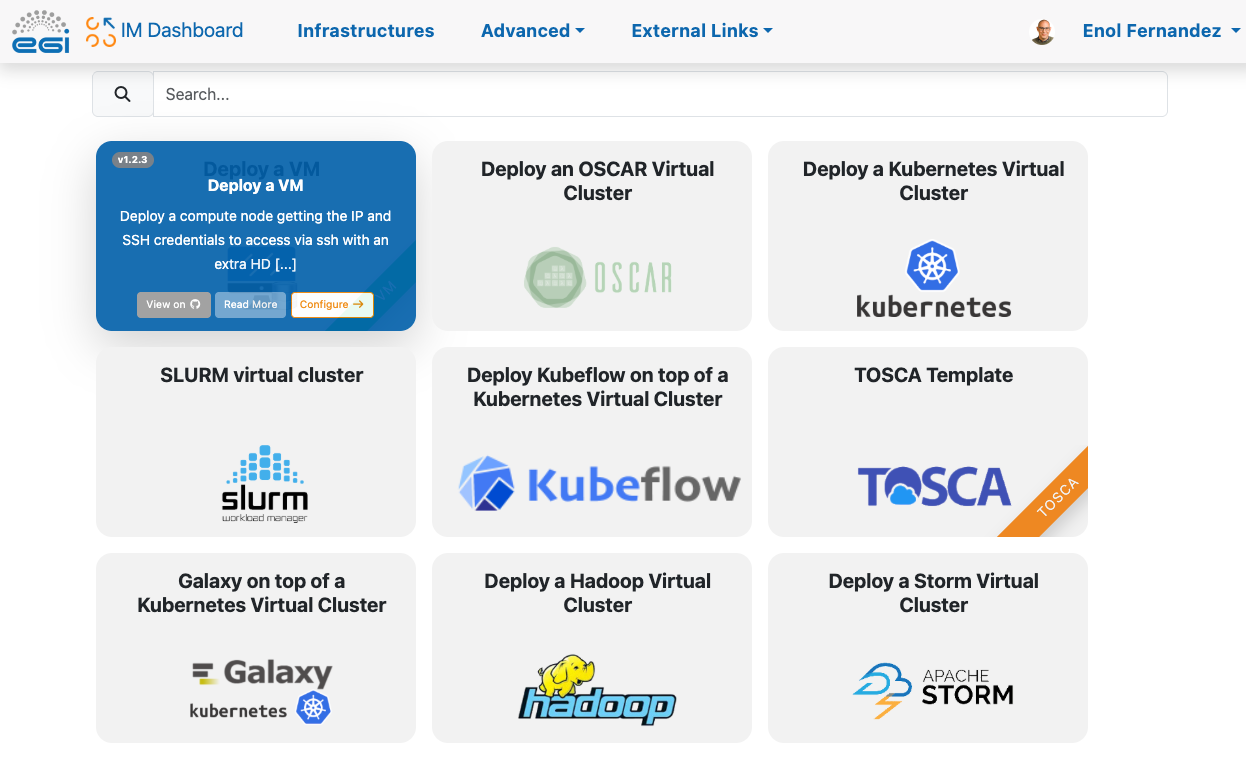
Once you have logged in the Infrastructure Manager Dashboard, select “Deploy a VM” from the dashboard:
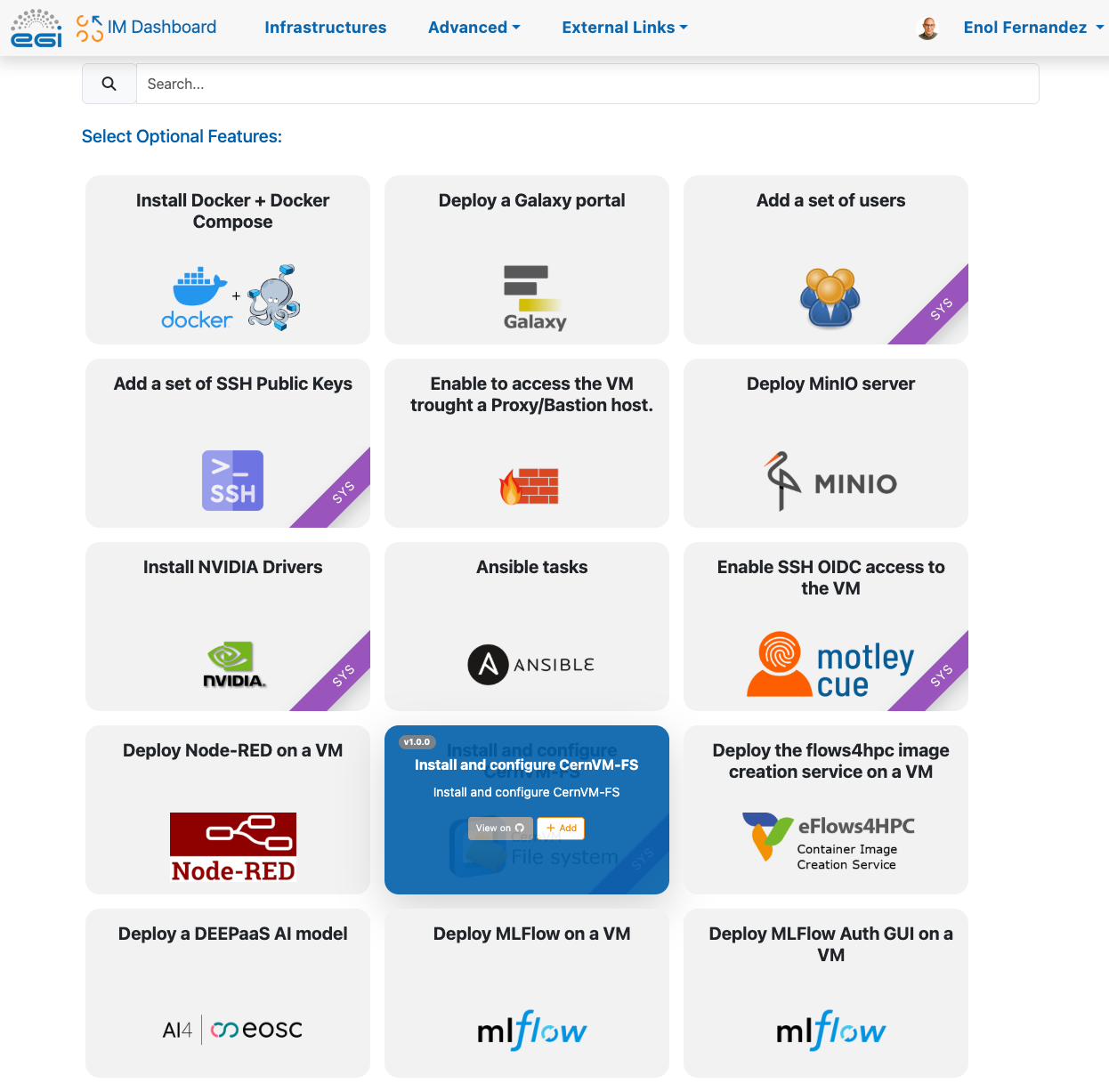
You will be shown with a set of optional features to add to the VM, Add “Install and Configure CernVM-FS” and click on “Configure” button at the bottom of the page:
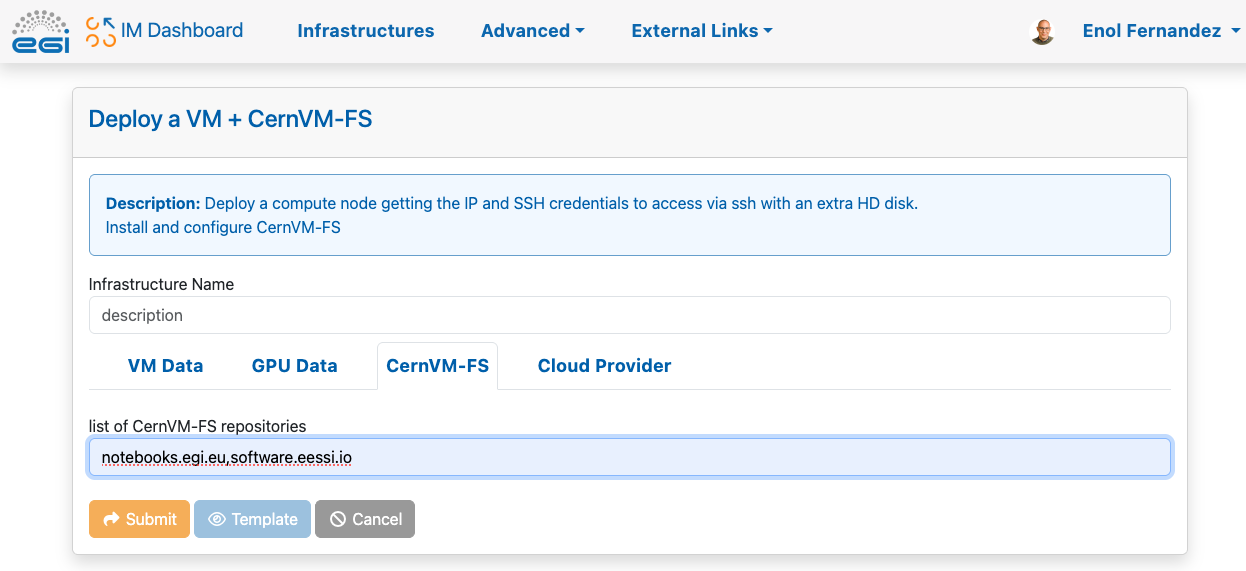
In the configuration form, you will see a CernVM-FS tab where you can list the
repositories to configure. In this example we will add notebooks.egi.eu and
software.eesi.io. EGI’s Software Distribution service supports the
repositories listed here
Check the IM dashboard documentation for more details on how to configure your VM.
Use your VM
Once the VM is configured:

click on “Outputs” and download the key:
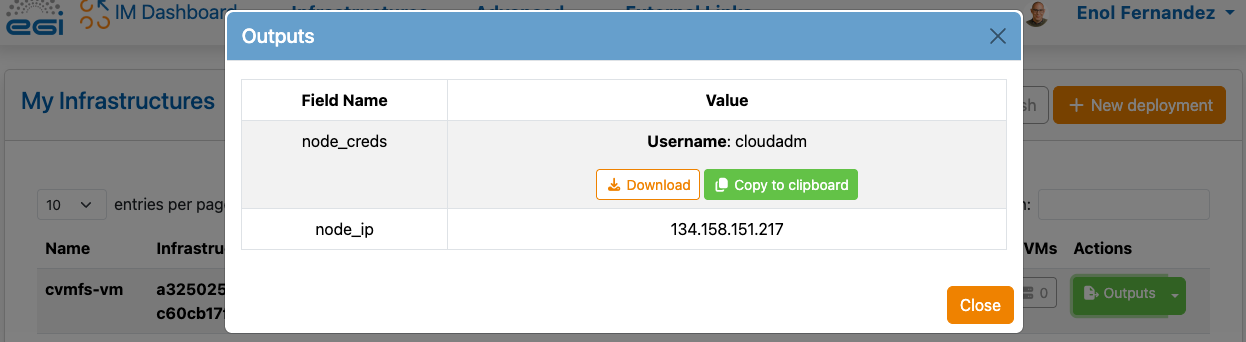
From your terminal you can now login and access the cvmfs directories
$ chmod 400 key.pem
$ ssh -i key.pem cloudadm@<your VM IP>
$ ls /cvmfs/notebooks.egi.eu
fedcloud  isgc-2023  midicsv
$ cat /cvmfs/software.eessi.io/README.eessi
EESSI - the European Environment for Scientific Software Installations

Getting started
---------------

1) Set up your environment by sourcing the initialisation script for a particular version of EESSI:

    source /cvmfs/software.eessi.io/versions/2023.06/init/bash

2) Explore the software included in EESSI via the "module avail" command.

3) Load one or more modules, and start running the software!


Links
-----

website: https://eessi.io
documentation: https://eessi.io/docs
support: https://www.eessi.io/docs/support (contact support@eessi.io via e-mail)